Sunday, October 9, 2016

Split Pages from Big PDF File

Have you ever been into situation that you have a big PDF file. But you want to have only some pages of that. For example you have PDF file with 40 pages and you want to have only 10 to 15 pages or so you want first page only or last page only. How will you do that without any Acrobat software like Adobe Acrobat or Acrobat reader. In this blog I am going to explain that.

First of all open that PDF file on Google Chrome Browser. If you don not have Google Chrome, download it as it's required. If you have file stored in your computer, right click on it and open it with Google Chrome. If there is a remote file. Open it in new tab of Google Chrome. It should look something like this.


Do you see print icon on top right side, Check the above screenshot. That's the print icon. Click on that. It should bring following print popup.


If you have printer installed it will be selected by default as destination in left hand side. We don't want to print file. Click on Change button under destination and select "Save as PDF" option.


No in pages by default all will be selected. Instead of all pages, select other option bottom of it and give page range. 

For example if you want first page only. it should be.

1-1

If you want 5 to 10 pages, it should be.

5-10 etc.


Click on save and it will only save the pages you have mentioned. That's it and with this trick you can split PDF files with only required pages. Hope this helps you.

Tuesday, April 26, 2016

iMac, Macbook, Mac Mini - Can Not Shutdown Because Some Apps Are Not Closing

If you are Mac users you may have encountered that some times some applications refused to close and because of that you can not shut down your machine.

This is because these are called zombie processes stuck in some kind of dead lock and no matter what you do, it will not close. If you try quitting it or fore close it, it will not close. So how to over come this situation.

There is only one way to kill these application, and that is through command line. Here are the steps you have to follow.

1) Open Spotlight, Hit Command + Space

2) Type Terminal in it and hit enter.


3) This will open terminal window. Now type following command.

kill $(ps aux | grep 'Application' | awk '{print $2}')

Replace Application with name of application in above command. For example if OpenOffice is stuck then your command should be

kill $(ps aux | grep 'OpenOffice' | awk '{print $2}')

Replace Application with name of application in above command. For example if Xcode is stuck then your command should be

kill $(ps aux | grep 'Xcode' | awk '{print $2}')

This will kill that application and then you can easily shutdown your machine. Hope this helps you.

Monday, April 25, 2016

Not Sure What is Next In Your Schedule? Use This Hidden Feature of Google Calendar

In this blog I am going to explain one of the hidden and cool feature of Google Calendar. We all know Google Calendar is one of the best tool for your time management. You can schedule your appointments, meetings etc. in there and even it is integrated with gmail. How ever there is one cool feature of it and most of the users don't know about it. So in this blog I am going to explain this.

I have following meetings and tasks scheduled in Google Calendar for today.


After finishing some work I wanted to know what is next. So I have to go to google calendar and see my schedule. But then why to go to Google Calendar if you can get details directly in your Google Home page.

Go to Google Home page https://www.google.co.in/ Please note,  You must be logged into your google account. And type following in search box.

what am I supposed to do next?

and it will show your next meeting details from Google calendar from current time on words.


So, very simple, schedule everything in Google Calendar and ask Google to what you have to next and you will get all your answers. 

Sunday, April 24, 2016

Copy Paste Content Without Styling from Webpage to Word Document or Email

Hello,

In this blog I am going to explain the trick to copy paste content from webpage without styling.

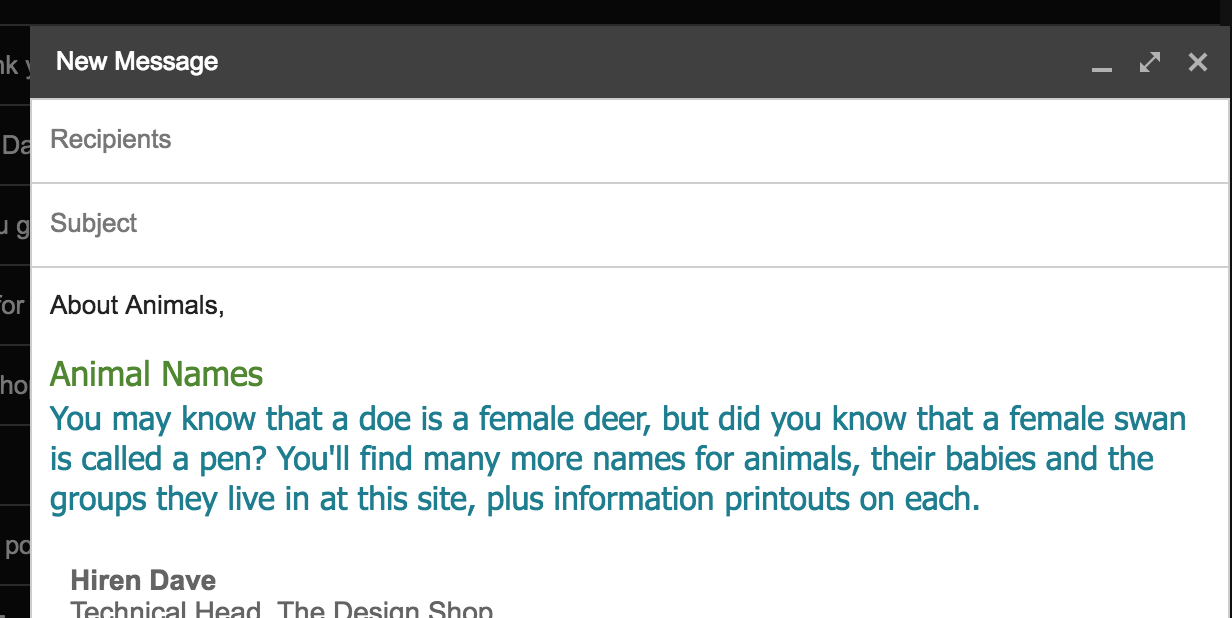
All of you may have faced this issue at one point of time in your life. Say you are drafting an email and you want to copy paste some content from webpage. When you copy and paste, the content will be pasted with all the styling. For example,  you are trying to copy following content from some web page.


When you copy and paste this in email or in word document, following happens.


So, as you can see the content is copied with all the styling colors and font etc. This will be painful for you sometime as you have to change font color and size and everything again in your email and word document. So how to overcome this. Very simple, first you copy and paste this content in Notepad if you are using windows machine or copy and paste it in TextEdit or TextWrangler if you are using Mac Machine. This type of applications does not support any formatting so all the styles and formatting will be lost. See example below.


Now copy paste this content from Text application to your email and word and see you will see it will be in plain text format.


Hope this helps you.

Saturday, January 30, 2016

Play Offline Game in Chrome - Endless T-Rex running game

When you are too much dependent on Internet for the work so forgot sometimes that your computer even works without internet. So what to do when network is down for some reasons and you don't have anything on your computer which you can use to pass the spare time and cut down the boredom.

Well, now you don't have to worry about it because Google takes care of it. You can play Endless T-Rex running game in Google chrome. Here what you have to do.

When you are not connected with internet. Open Google Chrome, open new tab and type any valid website address for example  www.google.com and it will show you following image.


Now you thought, it's just a some kind of graphics or emoticons displayed. Well it's not. Just click on T-Rex (Dinosaur) and hit space and T-Rex will jump and start running.  See the below image. 


So the game is all about clearing all the obstacles. So when an obstacle comes, hit the space and T-Rex will clear the obstacle. You can play it as long as possible till T-Rex struck with an obstacle. That's where the game is over.


But never mind, you can again hit space and new game will start. You can see current score and HI Score on top right side. 

Have fun...


Saturday, December 19, 2015

Undo mail Sending in Gmail

Have you ever faced a situation where you drafted an email in your Gmail account and clicked on send and suddenly you realized that you made some mistake in mail message or you missed something to attach and if receiver gets this email with problems, you will be in big trouble. That's the moment you will think that, I wish I can take that email back, it may be surprise for you but many of the Gmail users don't know that there is a such feature in Gmail where you can undo sending emails in 30 seconds. Here is what you have to do.

1) Go to your gmail account, and click on Gear icon on right side, it will show a menu, from that select settings.


2) In a General Tab there is a feature called Undo Send, there will be checkbox on left side. Which should be unchecked for you. Check it and select the cancellation period from the drop down. At max you can send 30 seconds.


3) Click on Save Changes at bottom of the page. And you are done. Now send an email to user and after sending you will see following message.


If you click on Undo, you message sending will be undone and you will get that message open in draft again, you can make your changes and save it again. I hope this helps you.


Friday, December 18, 2015

How to Book Confirm Tatkal Ticket on IRCTC Website

Hello,

I am very excited to start this new blog series. In this series I am going to share some tips and tricks I use on internet to make life easy. This trips and tricks comes from my own experience. I hope this will make your life easy.

In this first post I am going to explain some tricks to book confirm Tatkal ticket on IRCTC website. All the the readers from India will know about IRCTC. For the readers who are not from India. Here are some information on IRCTC. IRCTC is the website launched by Indian Railway. This gives facility to book tickets online. This website is splendid and it improved a lot since last few years. Million of tickets are booked through this website in every month and count is increasing each day.

Now we all know about Tatkal booking. Tatkal booking for any train will open 24 hours before the date of departure of train and there are limited seats and there is always a heavy rush for booking so you have to do something different to be ahead in rush. In this blog I am going to explain, what you can do.

First of all, for Tatkal bookings, there are different timings as of date (on 19 December 2015). Tatkal booking of all the AC classes starts at 10:00 AM , 24 hours before date of departure. So for example if a Train is running in Friday night. It's Tatkal booking will open on at 10:00 AM in morning on Thursday for all the AC classes and sleeper class bookings will start from 11:00 AM in morning. So here is what you can do to make sure that you get confirm tickets. Please note that using this tricks I was able to get confirm Tatkal tickets from Ahmedabad to Mumbai in peak season.

First of all here are some check lists, you should have or be prepared.

1) Make sure you have good internet connection. I suggest minimum 2 MBPS broadband connection. Do not depend on wireless connection or dongles. It may fail in between.

2) Keep your credit cards, debit cards, net banking details with you. Do not search or remember it at end moment.

3) Keep your mobile with you as you may have to enter OTP if you are using credit card or net bankings.

4) Be very firm about train selection. Select one train in advance. For example there are at least 10 to 15 trains between Ahmedabad to Mumbai. From that you have to choose one train in which you want tickets. There is no time for search or checking weather the seats are available or not. Because meanwhile you search and choose, all the seats are booked.

5) Be ready with your list of passengers and their required details. At end moment do not ask what's your age? or what's your full name? etc. Be ready with that.

Ok, so now you have all the things required let's go for it. First of all open the IRCTC website five minutes before the booking. So if you are booking for AC classes open it at 09:55 AM and for sleeper open it at 10:55 AM. So check your time and login. Ohh but wait, you can be depend on time displayed by your computer or clock. Because it may not be displaying proper time. It may be here and there for couple of minutes. This types of website works on the IST  (Indian Standard Time) and not your computer time or clock time. So to know timings. Go to following website and see the correct time and keep it open.

http://www.timeanddate.com/time/zones/ist


Login to IRCTC and search your trains, select the train and select the class and select Tatkal in quota.


You will see above list. When you click on quota so will see following.


As you can see above, it will show you number of seats available for Tatkal booking. But there will not be any book now button because booking is not yet open. So what to do, sit back and relax and wait till its open? Nooooo, you can not sit back and relax. Because in websites like IRCTC, there is a user session, if you do not do any activities for some time in website, your session will be expired and you will be logged out. So you have to login again and search again and meanwhile all the seats are gone. So you have to do some activities. As you can see in above image there is a refresh button. That will refresh the seat availability. Keep refreshing it every 30 seconds and keep watching time in IST clock. Sometimes what I observed is refresh button is not available so what do. In this case you can keep clicking on class in train list, it will refresh the seat availability.


 Do not refresh it every second as sometimes it will log out with error.

Keep checking IST click till it's 10:00 or 11:00.


It's the time now. Go for the booking. Refresh it one more time and Book Now button will be available.


Click on Book Now and go.... First screen will be passenger information. Fill it out as quickly as possible. Do not waste time in identifying captcha if it's not readable properly. Just refresh captcha and get the new one. Because if captcha is wrong, it will take time to reload the page and show the error. 

Quickly select your payment methods and go on payment site and pay. I am sure you will get confirm tickets, if you use this simple tricks suggested here. 

Let me know if this was helpful to you.